Updated 23 November 2026
First: is there an official download?
Many lecture-capture and webinar platforms have a download button that's easy to miss. Look for:
- a download or ⋯ / more menu next to the player or the recording's title;
- a link in the replay email sent after a webinar;
- the course's resources or files section, where some instructors post recordings.
If you find one, use it: it's the cleanest copy, and clearly allowed.
Save a recording that plays in your browser
If there's no download option, but your course allows offline copies for personal study, a recording that plays in your browser can usually be saved with the free Video Stream Catcher extension:
- Install the extension (Chrome or Edge; Firefox is in review).
- Sign in to your course or webinar platform as usual and open the recording.
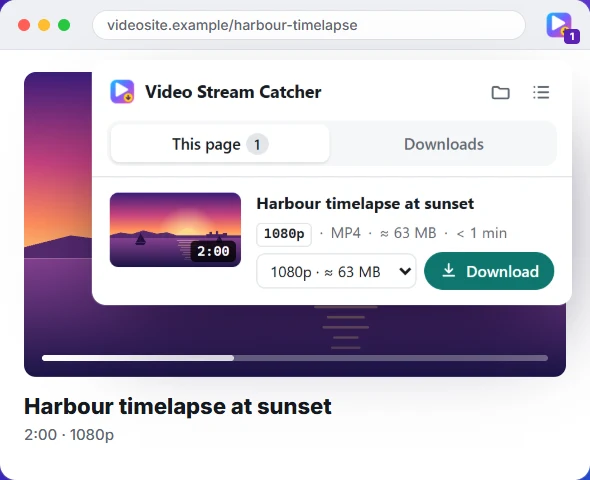
- Press play for a few seconds. The extension's icon shows how many videos it found.
- Click the icon, check the length (so you pick the lecture, not an intro clip) and choose a quality.
- Press Download. One MP4 lands in your Downloads folder, ready to watch offline.
Because the extension downloads from the page you're signed in to, it uses your own access, nothing more. A long lecture at high quality can be a few gigabytes; pick 720p if you're short on space.
When it won't save
- Protected courses: some platforms encrypt their videos with DRM. The extension refuses those, by design.
- Live sessions: a lecture or webinar that's still live can't be saved. Wait for the replay, usually posted within a day.
- Expired sessions: if you've been on the page a long time, the video links may have expired. Reload the page and try again.
Keep it fair
Recordings belong to your instructor or the organizer. Save them only when your course or the event allows it, keep them for your own study, and don't share or re-upload them. If you're not sure, ask: many instructors are happy to share a file.