
Skip to content
  1. Home
  2. Guides
  3. No download button?

How to download a video from a website with no download button

The site plays the video but won't let you keep it. Here are three ways to save it as an MP4, from a right-click to one click in an extension.

Updated 23 November 2026

A missing download button doesn't mean the video is hidden. Your browser downloaded it to play it, either as one file or as a stream of short pieces. The question is only how to keep it. Start with the quickest way and move down the list if it doesn't work.

Way 1: right-click the video

Right-click the playing video and look for Save video as…. If it's there and not greyed out, you're done: the site uses a plain MP4 file.

If you get the site's own menu instead, right-click a second time; some players only take over the first click. If “Save video as…” is greyed out or missing, the video is streamed in pieces, so go on to Way 2.

Way 2: one click with an extension

Most sites today stream video in pieces, which right-click can't save. Video Stream Catcher collects those pieces for you:

  1. Install the free extension for Chrome or Edge (Firefox is in review).
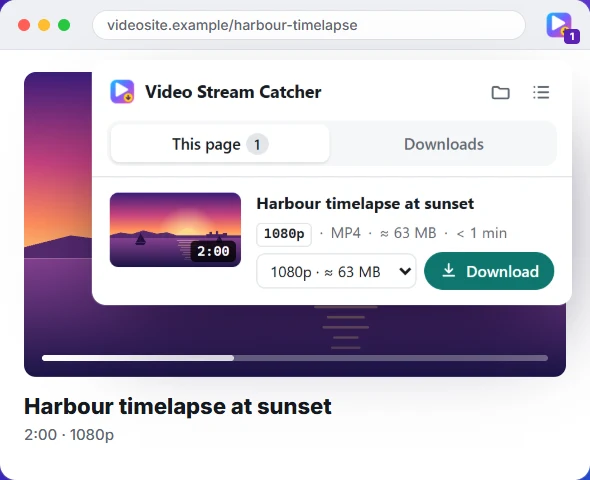
  2. Play the video. The icon shows a number: the videos it found.
  3. Click the icon, check the length and quality, and press Download.

You get one MP4 in your Downloads folder, in the original quality, because nothing is re-encoded. It works with M3U8/HLS streams, numbered .ts pieces, blob: videos, separate picture and sound, and plain MP4 files.

Way 3: find the file in developer tools

  1. Press F12 and open the Network tab. Choose the Media filter, then play the video.
  2. If you see an .mp4 or .webm request, right-click it, choose Open in new tab, and save it from there with Ctrl+S.
  3. If you see lots of small .ts or .m4s requests, the video is streamed. Type m3u8 in the filter box, copy the playlist's link and paste it into the M3U8 to MP4 converter.

Not sure what you're looking at? The guide to finding the M3U8 link walks through it.

What won't work

  • DRM-protected services such as Netflix, Disney+ and Prime Video: their streams are encrypted on purpose.
  • YouTube: not supported by the extension, under browser-store rules.
  • Live streams: there's no end to save. Wait for the replay.

Before you save anything, make sure you have the right to keep it: your own videos, lectures and webinars you have access to, and openly licensed media are fair game.
Questions people ask

Can you download a video from a website?

Usually, yes: your browser already downloads the video to play it. If it's a single file, right-click → Save video as… works. If it's streamed in pieces, an extension or the Network tab gets it. Protected (DRM) videos are the exception.

How do I download an embedded video from a website?

An extension catches embedded players too, because it sees every request the page makes, including those of the embedded frame. By hand: right-click the player, look for an option to open the frame on its own, and use Way 1 or Way 3 there.

How do I download a video using Inspect Element?

Press F12, open the Network tab (not Elements), choose the Media filter and play the video. An .mp4 request can be opened in a new tab and saved. Lots of .ts or .m4s requests mean a stream: filter for m3u8 and use the M3U8 to MP4 converter.

Why is “Save video as…” greyed out?

The video is streamed in pieces (it plays from a blob: address), or the site has put a transparent layer over the player. Either way there's no single file for the browser to save. Way 2 or Way 3 below gets around it.

Is screen recording a good way to save a video?

Only as a last resort. It records in real time, picks up anything that moves on screen, and re-encodes the video, so quality drops. Saving the stream gives you the original quality in a fraction of the time.

Is it legal to save a video that has no download button?

It depends on the video and the site's terms. Saving your own uploads, course or webinar recordings you have access to, and openly licensed videos is generally fine. Don't save or share videos you don't have the right to.

Skip the copying and pasting

The free Video Stream Catcher extension spots the video on the page you're watching, M3U8 or not. Click its icon, pick a quality and press Download: you get one MP4 file. It also works where this page can't, because it runs on the video's own page.

Free · No sign-up · No ads · Chrome, Edge and Firefox

The Video Stream Catcher popup listing a video with its quality, size and a Download button